How to create a path?

There are 2 ways to create a path in Pathsuite. In this post we will cover them both.

Create path through the "Paths" module

This method will be the fastest method to create a path if you want to create a path straight after your login.
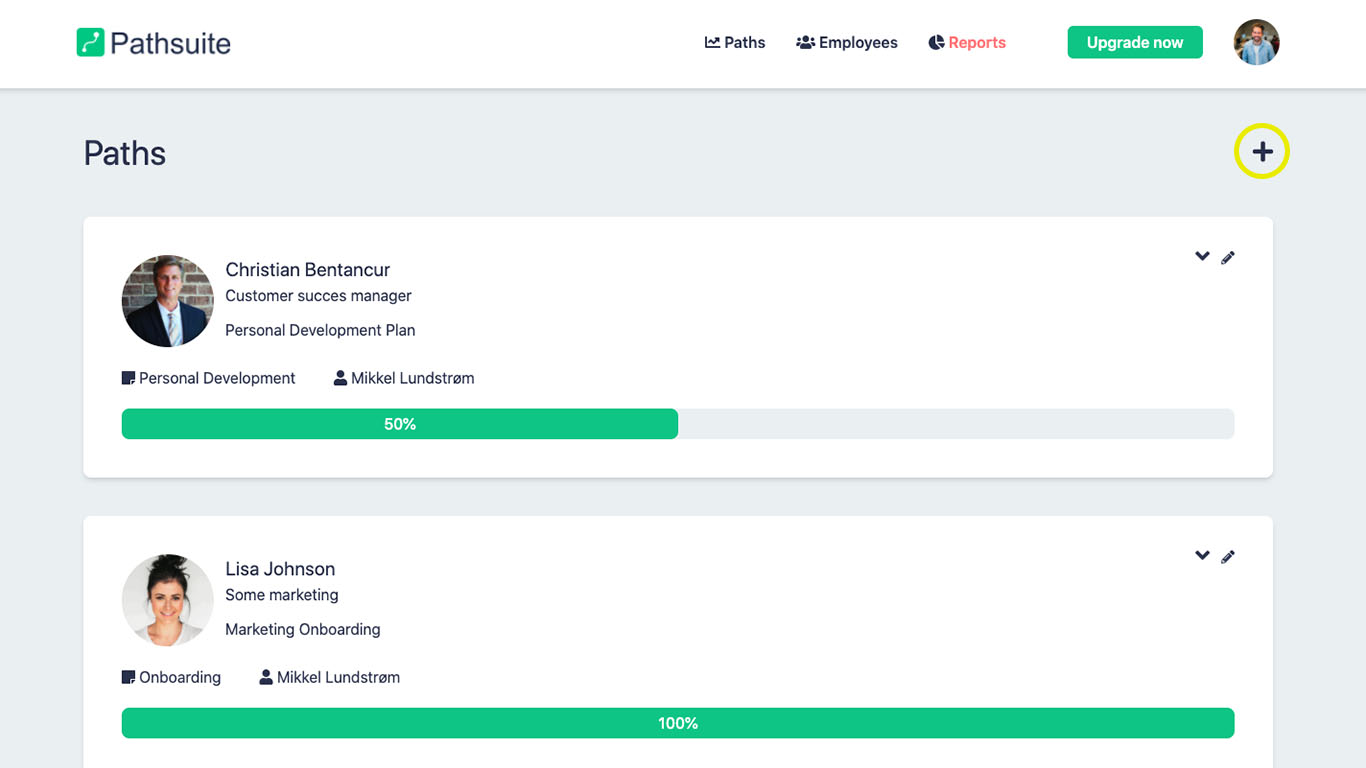
  1. Go to the "Paths" module
    ‍
  2. Click on the plus in the top right cornor.

‍

‍

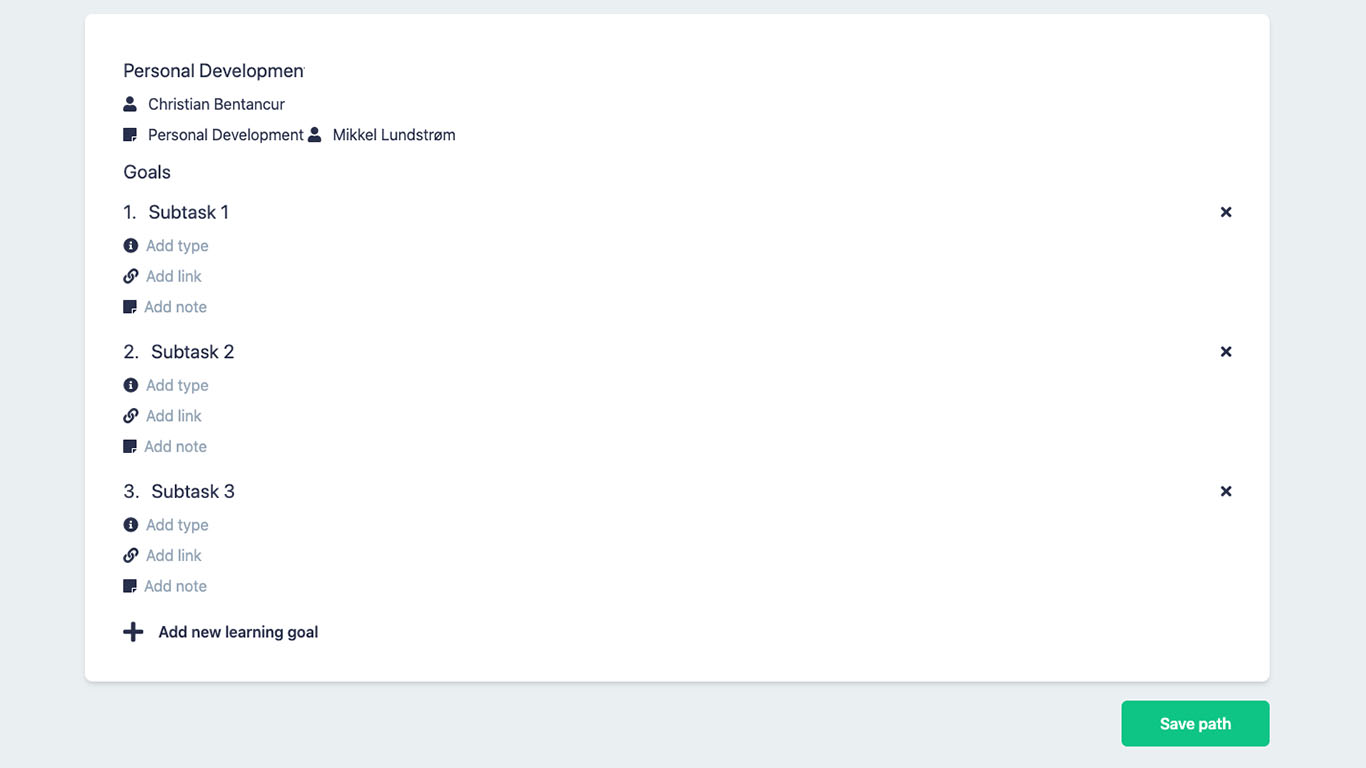
Now we get to the "Create Path page" where we can fill in the information for the path and add subtasks.
‍

  1. When the information is filled in, press the green button "Save path"

‍

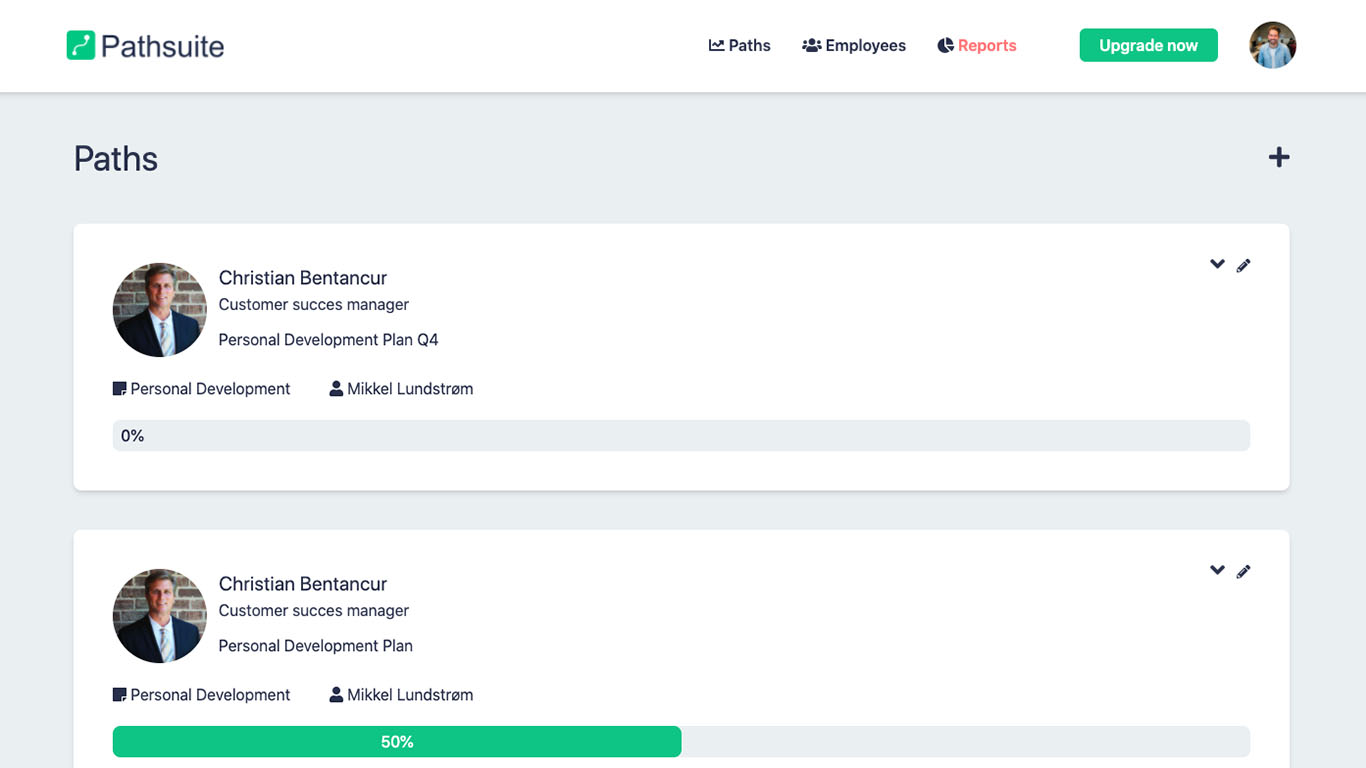
  1. The new path will now be visible in the "Paths" module and at the employees profile.
    ‍

‍

Create path through the "Employees" module

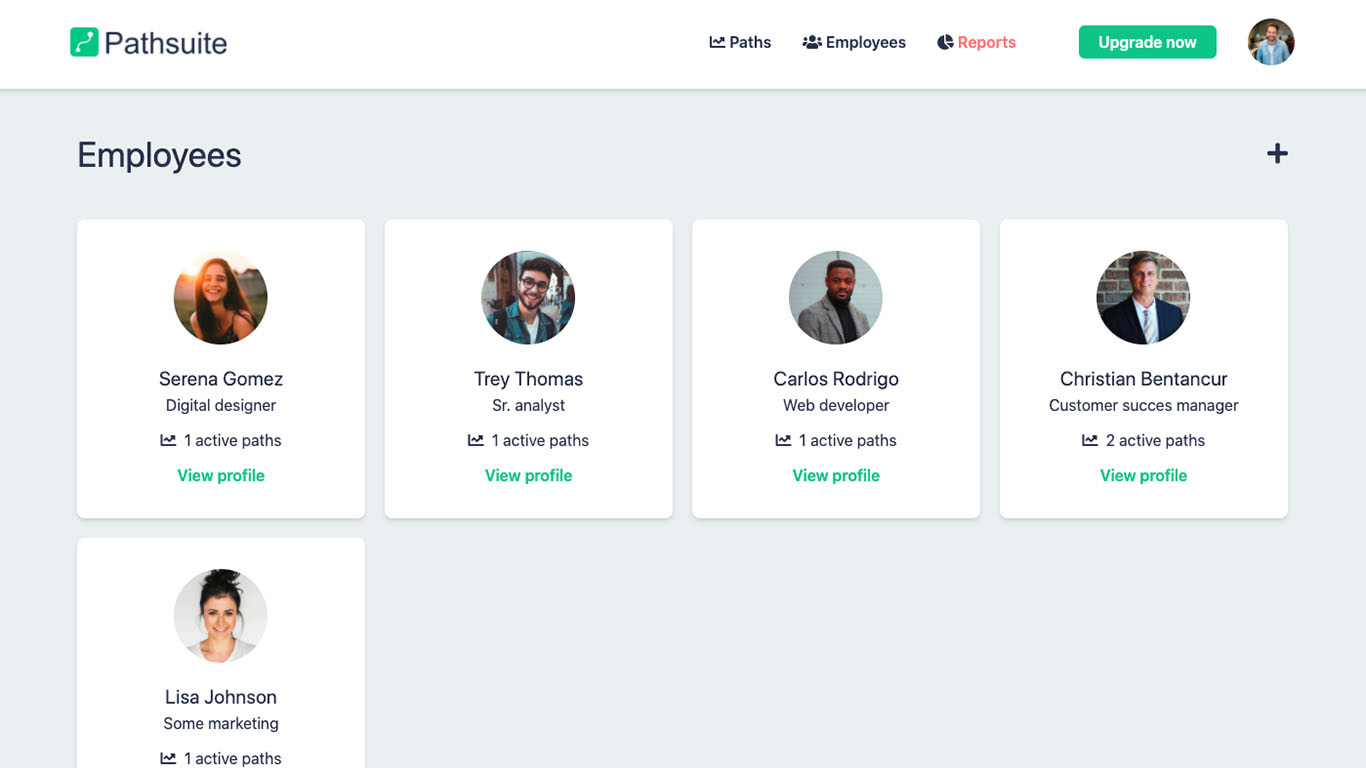
You can also create a path through the employees module. This method can be valuable if you are evaluating an employee and want to create a path afterwards.
‍

  1. Go to the "Employees" module

‍

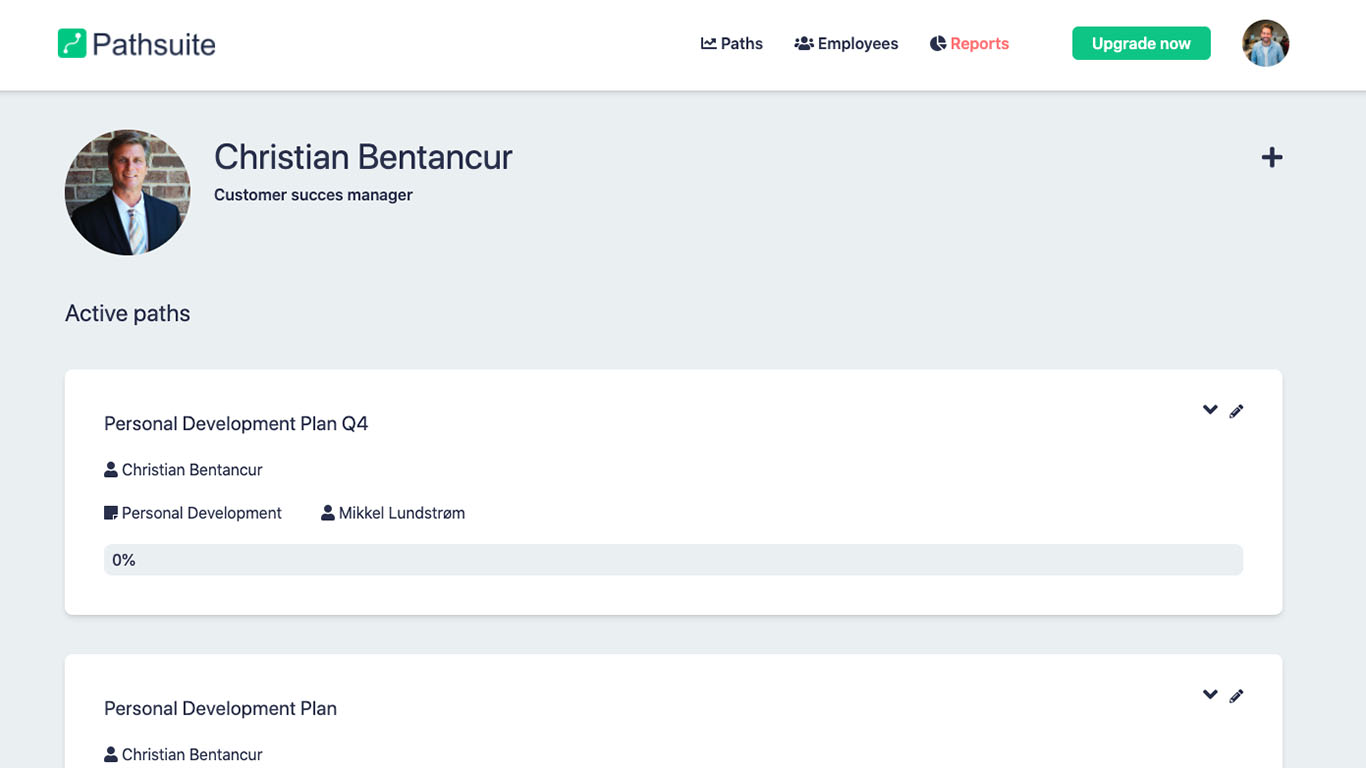
  1. Click on the relevant employee and "view profile"
    ‍
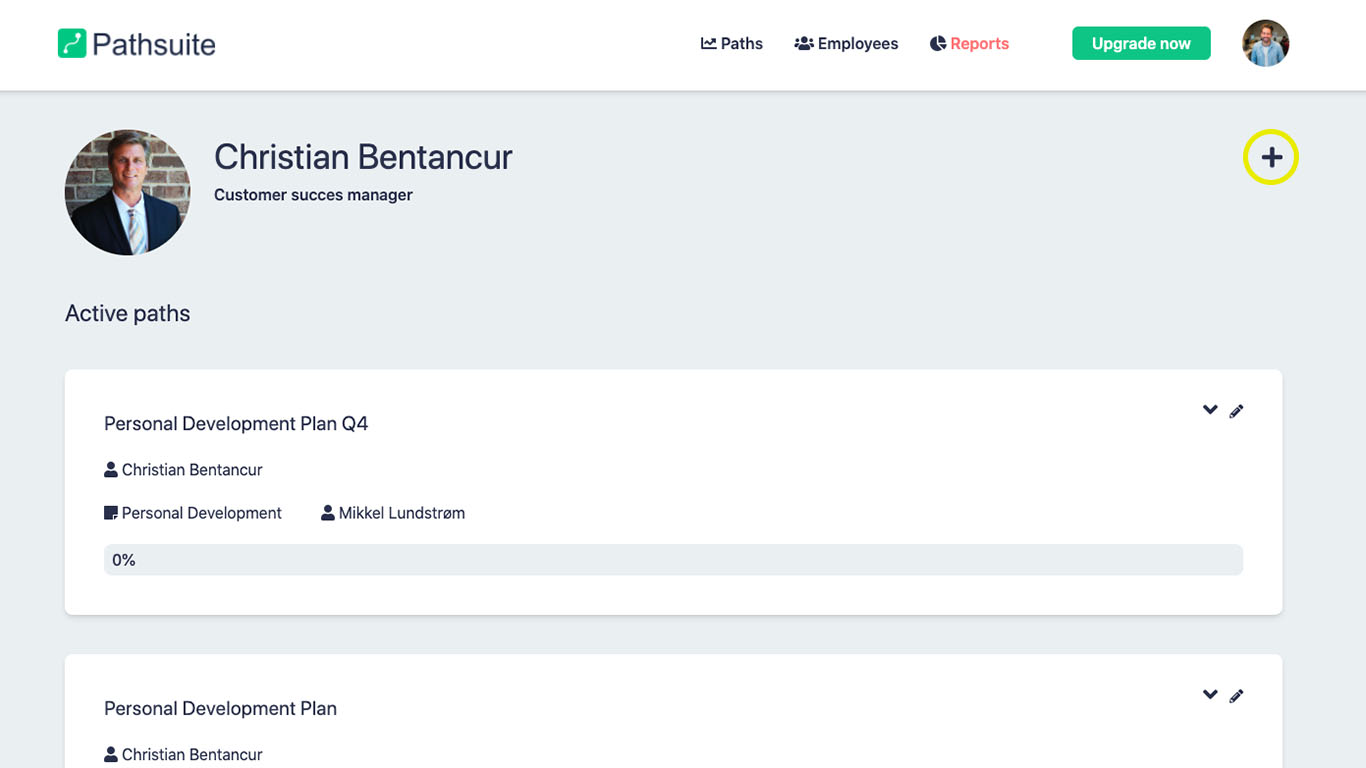
  2. Now click on the plus sign in the top right corner
    ‍

‍

  1. Now create the path and fill in the information. When finished press the button, save path.
    ‍


The path will now be visible in the employees profile and in the "Paths" module.
‍


This is the two ways to create a path in Pathsuite.

‍

Can´t find what your are searching?
Feel free to contact us
CONTACT US NOW